Long commands and snippets
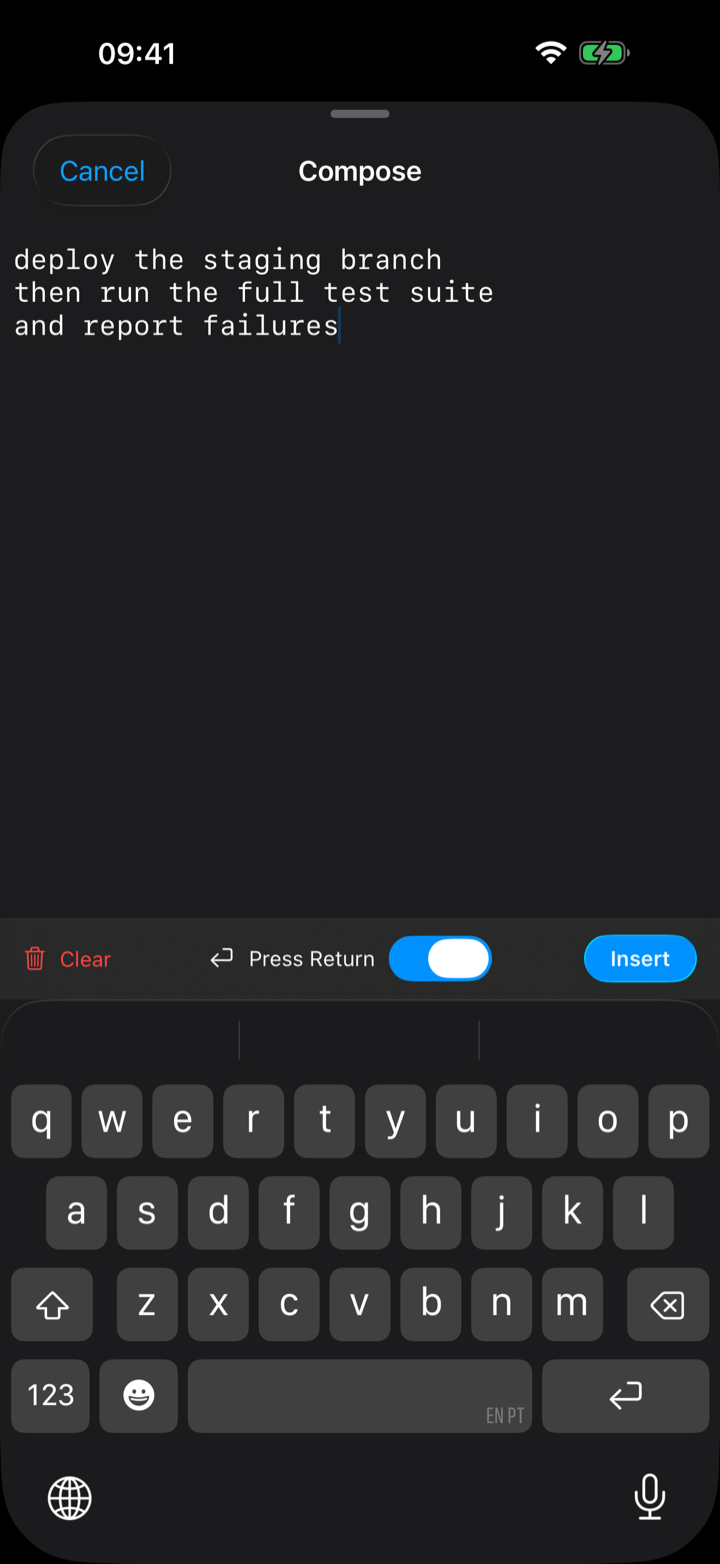
Drafting long commands
For a long command, or a multi-paragraph prompt to an agent like Claude Code, tap the compose key. It opens a multi-line drafting sheet; write as much as you like and send it in one go as a single bracketed paste. Your draft survives backgrounding and dismissal, and a Press Return toggle decides whether it runs on send or just lands in the prompt for you to review.
Typing Aids — the abc button on the composer’s bar — turn autocorrect and spell check on for prose and off for shell commands. Long-press it to open Settings → Keyboard → Composer, where you pick each aid: Autocorrect, Spell Check, Auto-Capitalization, Smart Quotes, Smart Dashes, Inline Predictions. The terminal and the snippet editor never turn your quotes and dashes into curly ones a shell can’t read.
Snippets — the commands you keep retyping
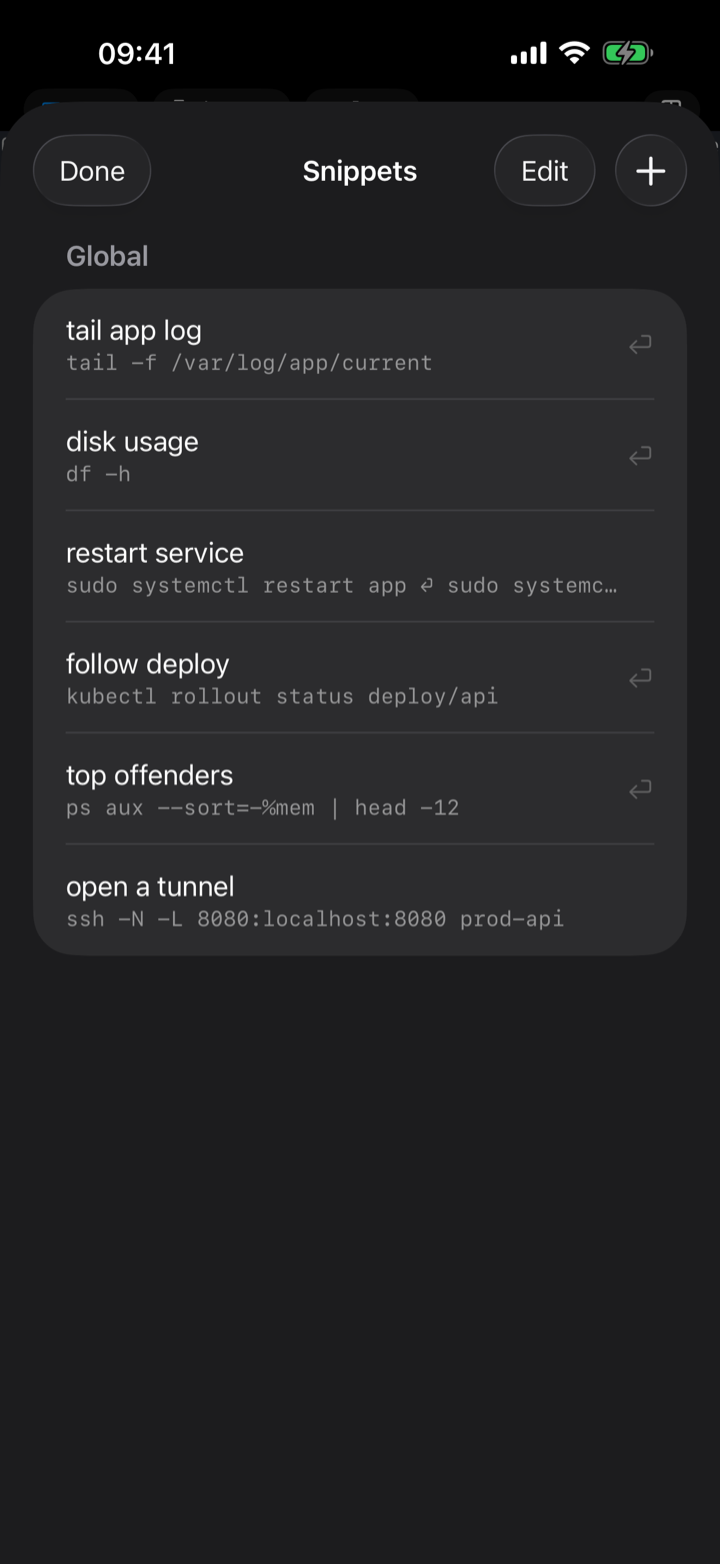
Some commands you type a hundred times: the log tail, the rollout status, the df -h. Save them as snippets and run them from the keyboard bar instead. Each snippet is a name and a command, and a Press Return toggle per snippet decides whether it runs on tap or just lands in the prompt for you to finish.
- Global snippets are available on every host; per-host snippets only appear on the host you saved them for — so
kubectl rollout statusdoesn’t clutter the bar on your NAS. - A snippet can hold more than one command; they’re sent in order.
- Reach them from the snippets key on the helper bar, and put your favourites directly on the bar as keys in the keyboard editor.