SSH keys, passwords and the Secure Enclave
dotMux supports three kinds of credential, all stored on-device (where exactly):
- ed25519 and ECDSA (P-256) keys — import them by pasting the key text or picking the file from the Files app. ECDSA covers the NIST P-256 curve (
ecdsa-sha2-nistp256), the one a Secure Enclave key also uses, so a key you already deploy to servers works here unchanged. Passphrase-protected keys are fine: dotMux asks for the passphrase once at import and never stores the passphrase itself. - Secure Enclave keys (P-256) — generated on the device, non-exportable, and signed entirely inside the Secure Enclave. Tap Copy public key and add the printed line to your server’s
authorized_keys. The private key never exists outside the enclave, even to dotMux. - Passwords — saved in the Keychain behind Face ID, or typed in fresh at connect time. A host with no usable credential prompts you when you connect; tick Save password and it’s remembered only after the login actually succeeds, so a wrong password is never stored.
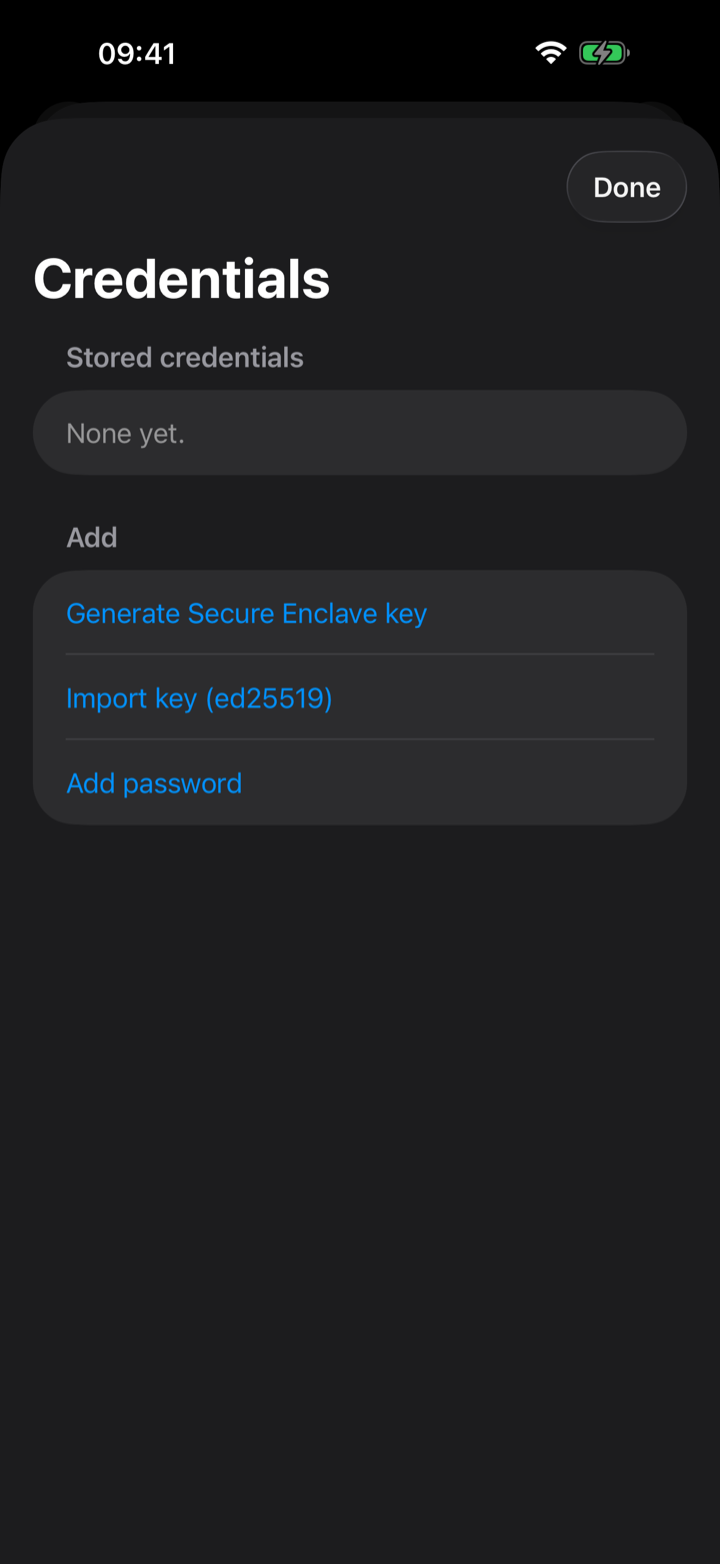
Manage them straight from Settings → Security → Credentials, without opening a host: add one, copy a public key, or set a credential’s Background use.
Keyboard-interactive servers
Password login uses SSH’s standard password method only. Servers set up for keyboard-interactive-only auth (often PAM / ChallengeResponseAuthentication setups) will reject every attempt even when the password is correct. Use a key on those hosts.
Why RSA keys aren’t supported
RSA keys are intentionally not supported. Modern OpenSSH (8.8 and later) disables the legacy ssh-rsa SHA-1 signature by default, and that’s the only RSA signature the underlying SSH library can produce today. A stored RSA key would look usable but silently fail to authenticate, so dotMux rejects RSA at import rather than pretend it works. Use an ed25519, ECDSA, or Secure Enclave key instead.